Advisor feedback, from sharing results to review
Why feedback gets tangled, five habits that keep it clean, and keeping reports, comments and the record in one place.
When you show your advisor your results, do you screenshot tables into a chat app and collect feedback by email?
"final_really_final_v3.docx…"
It works at first, but after two or three rounds it's hard to tell which table a comment was about or what you changed. Here is how to review results and trade feedback with your advisor and lab mates.
Three reasons feedback gets tangled
- The same results are scattered across several files.
- It's unclear which table or section a comment refers to.
- There's no record of who changed what, and when.
The problem isn't skill — it's that the channel isn't organised.
Getting clean feedback
- Say how far to read — one line like "please review up to Table 3 in the Results chapter" gets you a much faster review.
- Get feedback per table or section — "please add the CI next to β in Table 3" is far easier to act on than "the results look odd".
- Reply and close when done — reply after fixing and mark it resolved, so only open feedback remains in view.
- Stack versions, don't overwrite — keep earlier results and you can answer "what was it before?" at once.
- Keep a record — shares, review requests and change requests in date order make your process easy to explain later.
An example
Say you're studying office workers' lunchtime walks and afternoon focus.
| Who | What |
|---|---|
| Student | Uploads a multiple regression and writes "please review up to Table 3" |
| Advisor | On Table 3: "add the 95% CI next to β" |
| Student | Adds the CI, saves again and replies |
| Advisor | Checks it and marks it resolved |
With the place, the reply and the record together, feedback stays clear however many rounds it takes.
Checklist before you share
- Tables and sections have numbers and titles
- The review request says how far to read
- Earlier versions are kept, not deleted
- Every addressed comment has a reply
In Skari
In Skari, save your analysis reports to a research project and review them with your advisor and colleagues. Press Share at the top of the project and pick who to add. Reviewers can read the reports and leave comments.
Open a report and you'll see Review comments. Under Where in the report, choose the whole report or a section or table title. Click the table name on a comment to jump to that spot. Each comment has Reply and Resolve; close what you've fixed and bring it back with Show resolved.
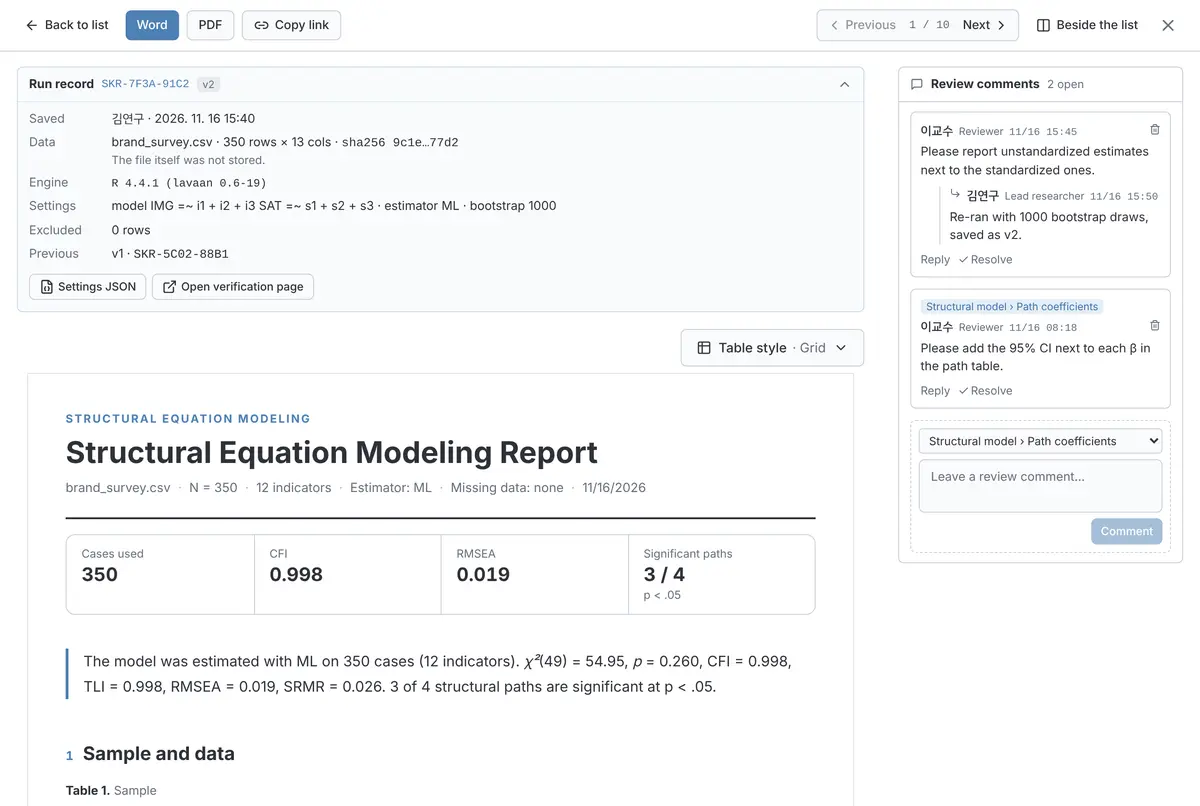
Get your project reviewed
Save a report to a research project and share it
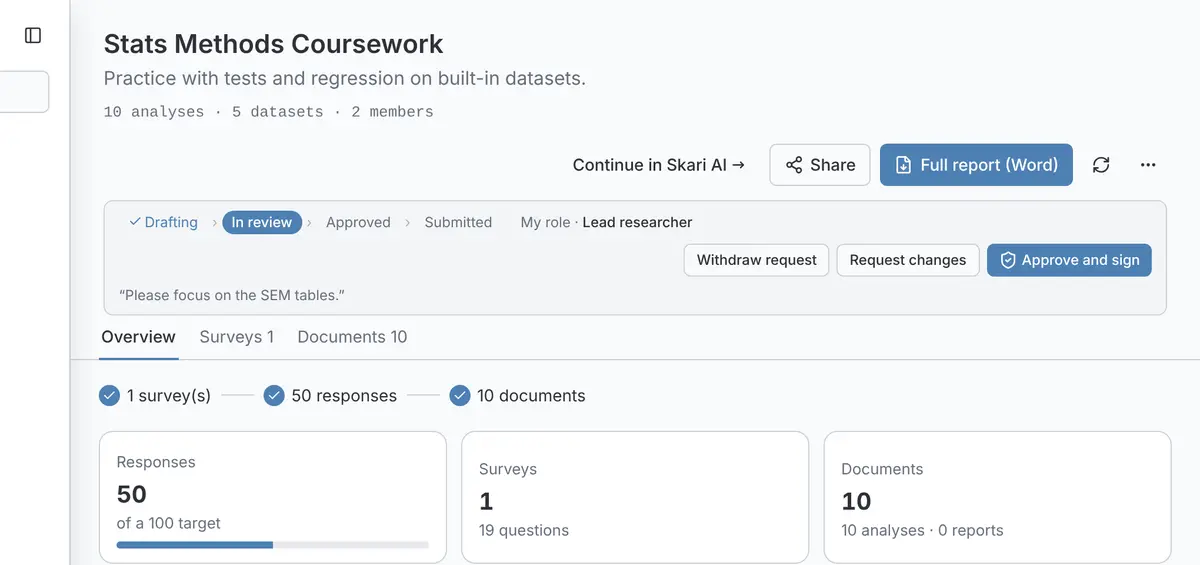
Above the project is a status bar: Drafting › In review › Approved › Submitted. When you press Request review, whatever you write under Note (optional) — "please read up to…" — appears right below the bar.
When someone comments or requests a review, you're notified in the top menu. Comments, review requests and invitations can also come by email, set under Settings › Notifications.
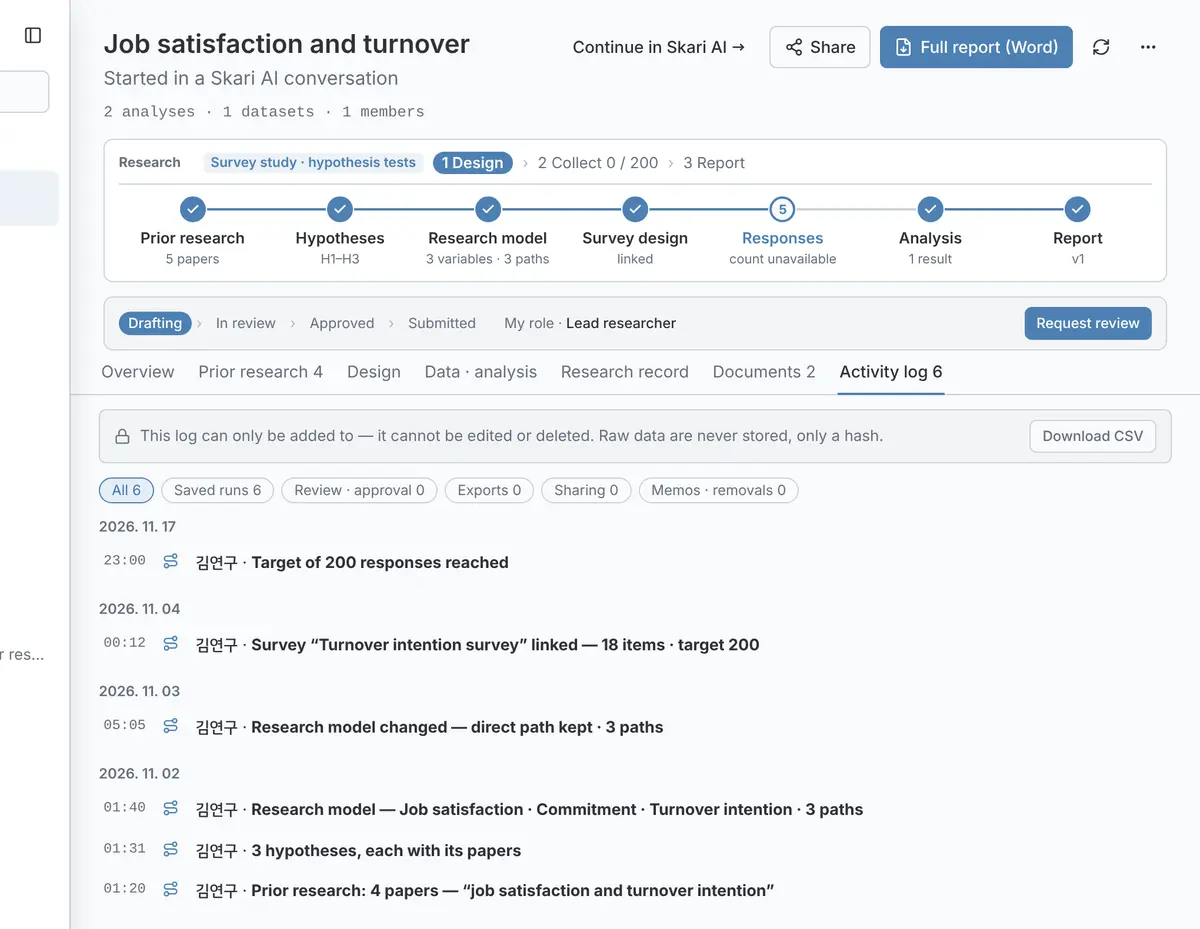
The Activity log tab records saved analyses, exports, shares, review requests and comments in time order. It can only be added to — never edited or deleted — and you can Download CSV. Projects created as a research type also have a Research record tab showing the whole path from prior research to report, by date.
Save the same analysis on the same data again and it stacks as v2, v3, with earlier versions kept. No more "final_really_final" files.
To work as a whole lab, create an organisation under Team management in the profile menu and bring everyone into one place.
- Invite code — share the 10-character code in your group chat; people join at /join
- Email invitation — named people only; the link closes after 7 days
- Roles — owner, admin, member
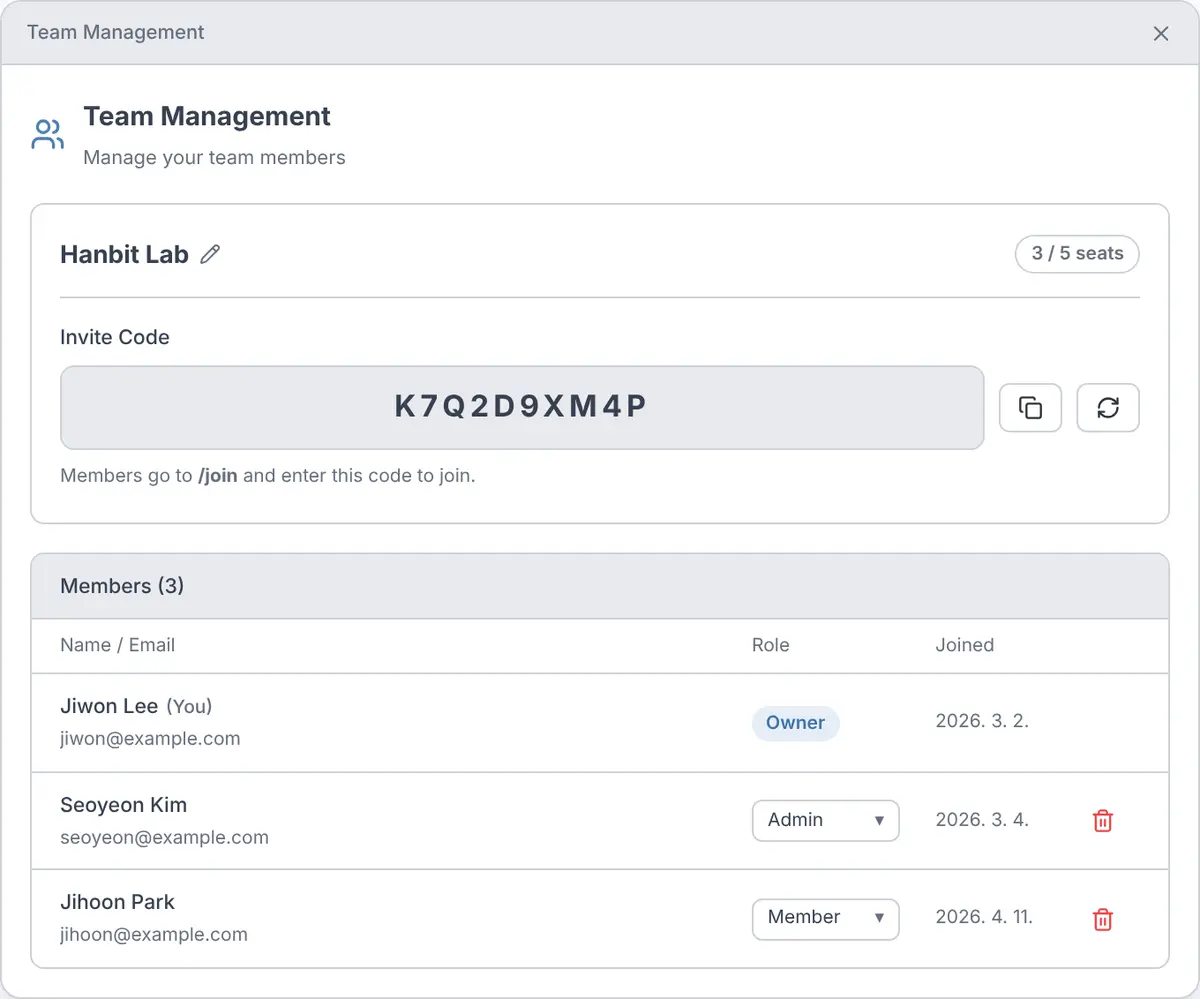
Tangled feedback is nobody's fault — it comes from too many channels. Keep reports, comments and the record in one place, and your advisor reads with ease while you know exactly what to fix.
Answering your advisor's whyThe Academy's test-selection guides help you explain why you chose each analysis →